CIO Private Cloud- Multiple Monitors

Expanding your cloud session across multiple monitors:

  1. First, log into your cloud as you normally would (https://cioprivatecloud.com/vpn/index.html)
  2. When your cloud session has opened, locate the black Citrix toolbar and click to expand the menu.
    • Expanding your cloud session across multiple monitors
  3. From this menu, select the “Window” option
    • From this menu, select the "Window" option
  4. Your cloud window will shrink down so that it is no longer full-screen.
  5. Grab the edge of this window and drag to expand it at least halfway across the additional monitors you want to use.
    • Expanding your cloud session across multiple monitors
  6. Once the window is expanded across your monitor go back to cloud tool menu and click “Full Screen“, or simply click the “Maximize” option on your browser window.
  7. This will expand your cloud session across multiple monitors!

Questions? Please contact CIO Solutions Support!

How To: Log in with MFA Number Matching

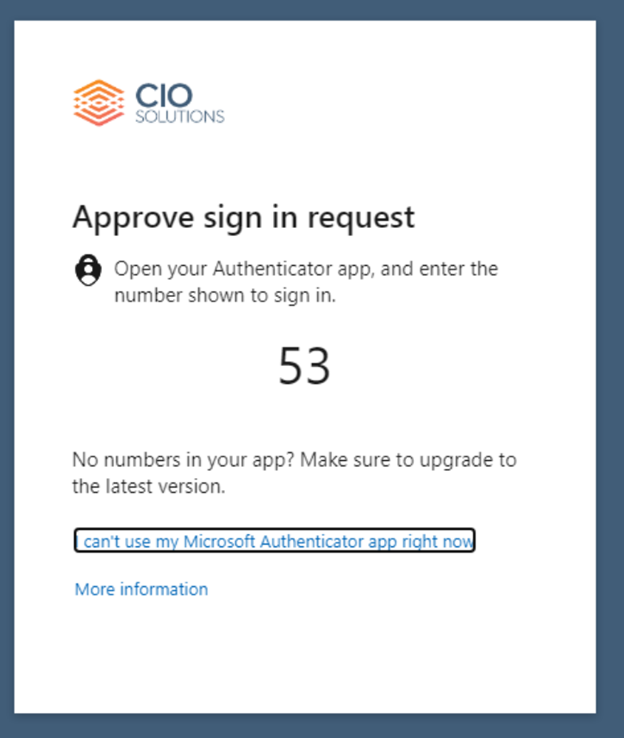
Number matching is a verification method in which users enter their password as normal and are then provided with a verification number. That verification number must be entered into the Microsoft Authenticator app on their mobile device to grant access.

This is a slightly different login process than you may be used to!

How to log in using the Number Matching method:

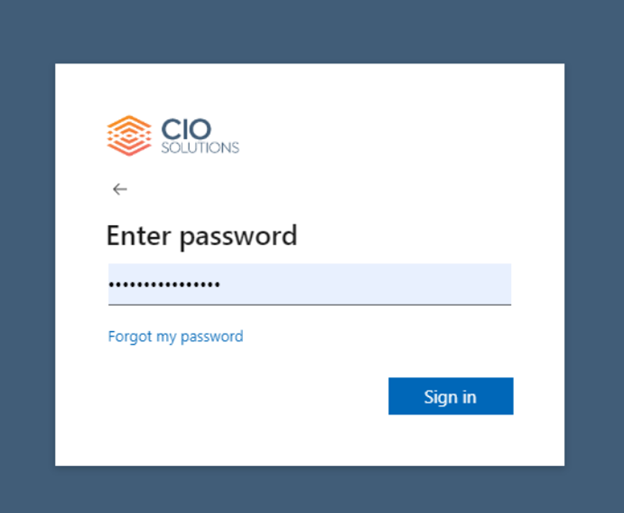
Enter your username and password as usual on your desktop Enter your username and password as usual on your desktop
You will be prompted to approve the sign-in request by entering the verification number on your Microsoft Authenticator app You will be prompted to approve the sign-in request by entering the verification number on your Microsoft Authenticator app
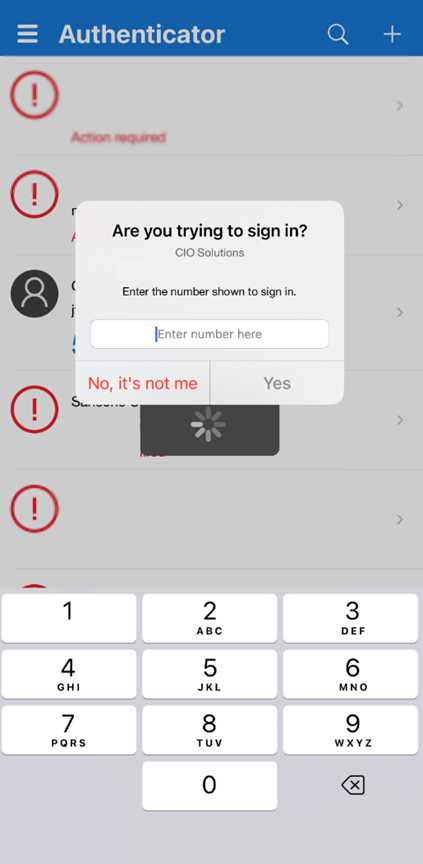
Open the Microsoft Authenticator app on your mobile device Open the Microsoft Authenticator app on your mobile device
Enter the verification number that was displayed on your desktop
Complete your login


Don’t have the Microsoft Authenticator App?

1) Install the Microsoft Authenticator app on your mobile device

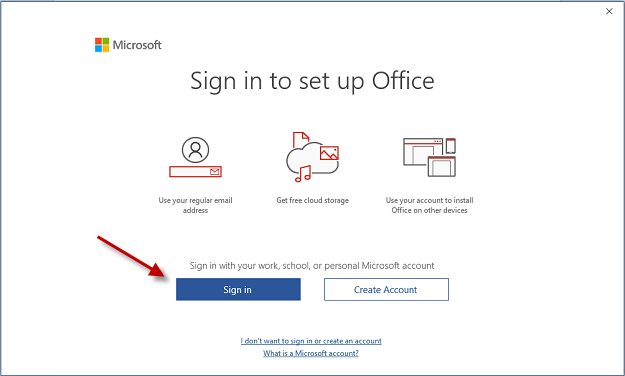
2) Connect the Microsoft Authenticator app by selecting “Sign In”

3) Enter your username and password as you would on the desktop


If you have any problems with these steps, contact CIO Solutions Support.

Why Blacklisting Spam May Not Work

From CIO Support

IN THIS ARTICLE: 

Imagine this scenario: you’re sitting at your desk and an email pings. It’s an invite to a business conference from a name that looks familiar. Glancing over it, the email itself is innocent enough and doesn’t appear phishy; the organization putting on the conference is a legitimate industry-related business.

You delete this message and forget about it. The next day you receive another message seemingly from the same sender.

You’ve decided not to attend and don’t want to receive more of these messages – you never signed up for them in the first place. So, you quickly add the email to the blacklist on your spam protection.

What does it mean to “blacklist spam”?

Your blacklist is a set of senders/IP addresses that are blocked entirely or sent automatically to your spam folder.

The list is made up of senders the spam filter has automatically designated as “spammy” based on key characteristics, or that the user has manually added.

The sender is on your blacklist now which should solve everything, right?

The following day you receive virtually the same email.

Now you’re frustrated. Has your blacklist failed you?

Looking closer at the emails, you see that in all cases, they were sent from slightly different email addresses. Sending emails from varied IP addresses and servers is a strategy that even legitimate email marketers are using to get through spam filters. To keep up, you’d have to blacklist every version of that sender’s email!

Blacklisting spam: a losing battle

Our support team at CIO Solutions sees this scenario often. Users have an annoying sender they don’t want to receive emails from anymore. So they call or email our team to get that address blacklisted. We can do this, no problem, but it won’t solve the problem long-term.

Because of this tactic of sending emails from different IP addresses to bypass spam filters, this is going to be a recurring issue. Spending time blacklisting every version as it comes in isn’t a productive use of time for anyone.

So, what are the options for stopping pesky emails from continuing to clog up your inbox?

Alternatives to Blacklisting

  • Clicking “unsubscribe”- NOT advised

Unsubscribing may seem like the obvious answer, but it’s too risky.

If it is a malicious phishing email, clicking on any links in an email could lead to a password compromise. Even if it’s a benign sender, “unsubscribes” could still go ignored or worse, confirm that you received and engaged with the message in the first place (not great practices, but it happens).

  • Increase the spam threshold- Recommended

Increasing the spam threshold is a common and free option on many spam filters. Adjusting this sets the aggressiveness of the spam filter. The more spam-like or unreputable characteristics the email has, the more proactively it will be blocked.

Unfortunately, the downside is that you run the risk of legitimate emails getting caught more often by the spam filter. However, depending on your spam filter, you can check your lists and adjust your settings to “whitelist” or approve certain senders as needed!

Making better use of your time

Increasing the spam threshold is a broader, more proactive solution than the time-consuming, frustrating, and reactive one-by-one blacklisting method. It’s true, it means you may need to do some work to allow desired emails through. But it’s much more productive to allow the things you want vs. spending time and energy trying to keep up with blocking the things you don’t!


NOTE: CIO Solutions offers additional paid tools to help flag emails based on a threshold of legitimacy. Please reach out to explore your options if this is of interest! 

Not a client yet? Let’s talk!

Office 365 Unlicensed Product Error

Issue: Logging in/using any Microsoft product gives you an “Unlicensed Product” error.

Usually, this is in the form of a red or yellow warning bar and/or a yellow warning triangle next to your login name. The warning bar tells you that your license is expired or that you cannot use your Microsoft product. You can open documents but may not be able to type.

This can happen in Word, Excel, Outlook, Powerpoint, or any Microsoft product.

Office 365 Unlicensed Product Error

Steps to Resolve:

  1. Close out of all of your Microsoft applications entirely
  2. Open Microsoft Word
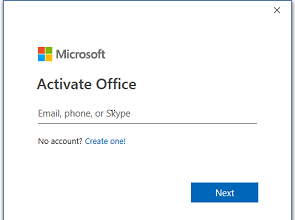
  3. Click on the warning triangle to prompt you to re-authenticate Office 365 Unlicensed Product Error
  4. Click the Sign In button Sign In - Office 365 Unlicensed Product Error
  5. Enter your full email address Enter Email
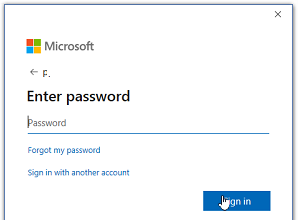
  6. Enter your email password (if you use the Cloud, this is also your Cloud password) Enter Password
  7. Click Sign In and it will load Word without those error messages or warning
  8. Now open any other Microsoft application and it should load properly


If the above does not work: 

  1. Close all Microsoft Office applications (Word/Excel/Outlook/Teams/Access, etc.)
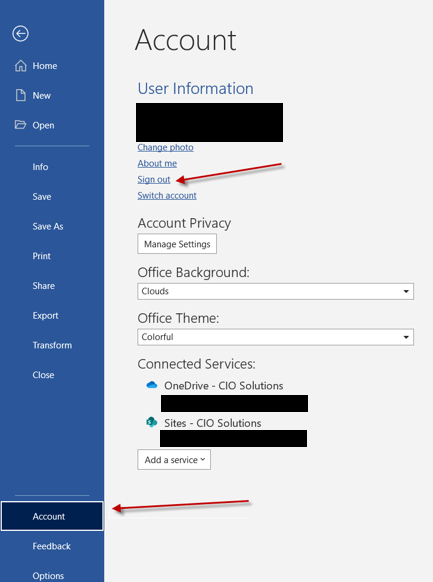
  2. Open Microsoft Word and go to File > Account
    • Open Microsoft Word and go to File > Account
  3. Click sign out at the top. (Note: it may already be signed out)
  4. Once this is complete, Sign-In once more like above (Steps 4-7 above)

If you have any problems with these steps, contact CIO Solutions Support.

Resetting Outlook Password

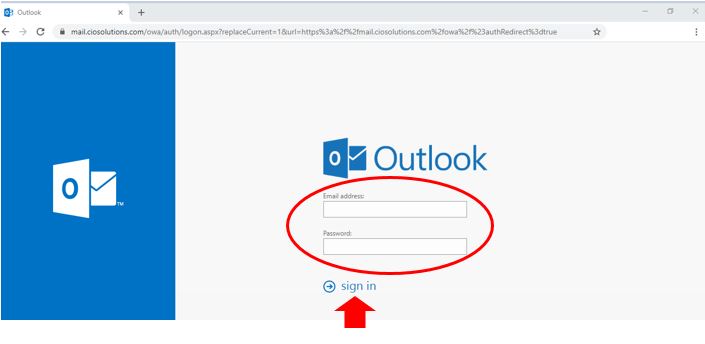
    1. In the address bar of your browser, go to https://mail.ciosolutions.com/
      1. Enter existing credentials(email address & current password) then Sign In
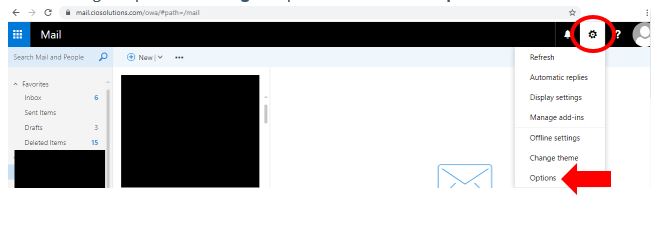
    1. Click the cog to open the Settings drop-down and select “Options”

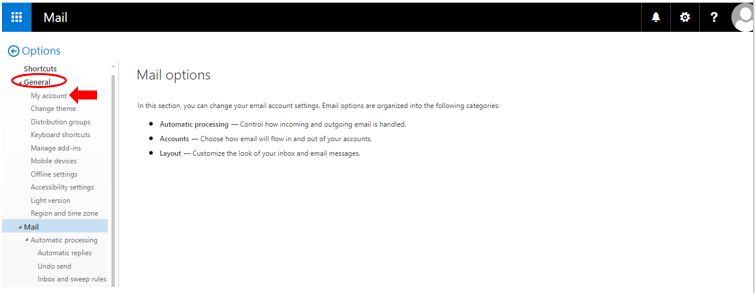
    1. In the Options menu, click to expand General, then click on My Account

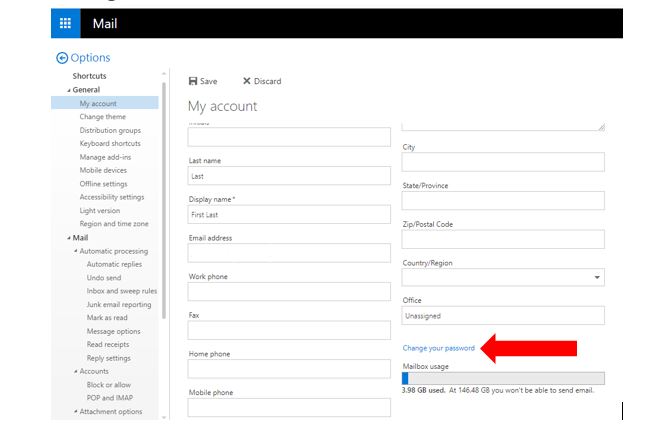
    1. Click Change Your Password

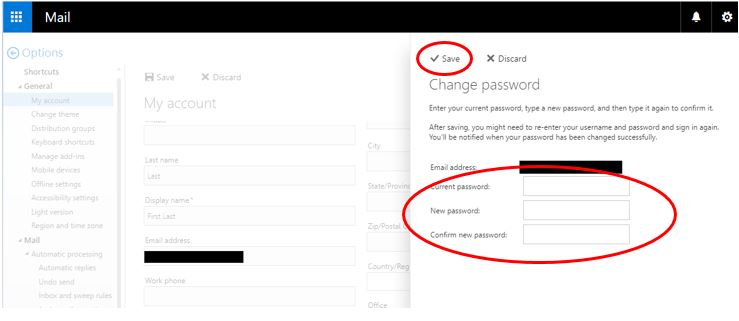
    1. Enter your current password & your new password. Click Save to complete the change.
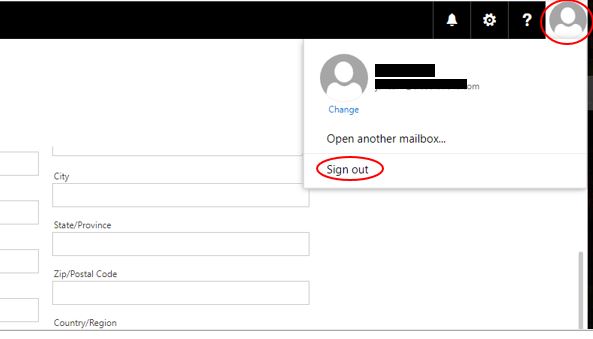
    2. Sign out of Outlook (click your account icon on the right, then select Sign Out from the drop-down)

    1. Sign back in with your updated credentials

    1. Be sure to sign out and back in with your new password on any other devices you use Outlook on such as your phone


Questions? Please contact CIO Solutions Support!

Resetting Cloud Password

  1. Go to https://cioprivatecloud.com/and enter your login credentials to log on

Resetting Cloud Password

  1. Once logged into the cloud locate the menu bar across the top of the window. Click to expand the menu.

Resetting Cloud Password

  1. Click Ctrl+Alt+Del from the menu options

Resetting Cloud Password

  1. Choose “Change a Password”

Resetting Cloud Password

  1. Enter your current password & new password then click the arrow to finish

Resetting Cloud Password

To update your password and prevent lockouts

  1. Click Ctrl+Alt+Del from the menu optionsResetting Cloud Password
  2. Select Sign Out from the menu

Resetting Cloud Password

  1. Log back into the cloud as usual with your updated password

Questions? Please contact CIO Solutions Support!